

The "Sperry Gyropilot for Aeroplanes" was a remarkable invention. It was
superior to other designs since there was no direct mechanical linkage to
the gyroscope, thus preventing the possibility of the sensitive gyro element
being disturbed.
There is a natural tendency for a pilot to distrust any mechanical device
which its designers claim will do a job that formerly depended on his own
skill and experience. It is almost an aggravation to find one's aeroplane is
being flown as accurately under automatic control as when it is receiving
all the concentrated attention on the part of a human pilot to maintain
course and altitude.
In time, airline pilots overcame these prejudices, if not quite ready to
admit that the "Gyropilot" might even fly the aeroplane more accurately than
they.
The Sperry Autopilot is a fun instrument to fly. It requires much more
attention than the more modern autopilots, but all of this adds enjoyment to
flying the DC-3. Once you have gone through the explanations below, you'll
excitedly turn the Sperry on for many of your flights.
NOTES:
Engage the Sperry Autopilot AFTER dialing in the correct heading setting.
The Sperry will neither turn an aircraft to a specific heading nor
climb/descend an aircraft to a specific altitude. Its function is primarily
to maintain a heading that you dial in or to maintain a pitch setting that
you dial in. Read the control explanations below for a better understanding.
The rudder Auto-coordination in Flight Simulator must be in the OFF position
for the Sperry to properly function.
You will find that the Sperry Autopilot is very easy to understand, and a
very straight-forward instrument, once you have read these operation
procedures,. It's a lot of fun piloting an aircraft with the Sperry engaged
because you are actively in control at all times. You won't be dozing at the
controls at all.
 This
is the primary autopilot control for maintaining the aircraft heading.
Unlike modern autopilots, the Sperry controls heading with the rudder, not
the ailerons. This is why auto-coordination must be switched OFF when using
the Sperry.
This
is the primary autopilot control for maintaining the aircraft heading.
Unlike modern autopilots, the Sperry controls heading with the rudder, not
the ailerons. This is why auto-coordination must be switched OFF when using
the Sperry.
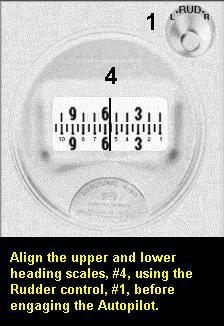
The lower scale portion of the heading indicator (4) is a directional gyro
similar to the primary directional gyro on the aircraft panel. Mouse-Click
on the Rudder Control (+ turns the aircraft right, – turns the aircraft
left) until the top scale and bottom scale are in alignment as shown to the
left. Do this after the aircraft is stabilized on the desired heading, not
while it is in a turn. The autopilot should be in the OFF position, as Knob
#7 shows in the previous illustration.
Once the autopilot is engaged, you may vary the heading a few degrees to the
left or right by mouse-clicking on the Rudder Control, #1. That is the
procedure, for example, to center the localizer needle on the ILS.
 Use
the Aileron control, #2, to manually turn the aircraft to a new heading. It
takes a little practice to learn how much to lead the new heading when you
roll out from a turn. Obviously, one can only perform this function when the
autopilot is engaged, knob #7.
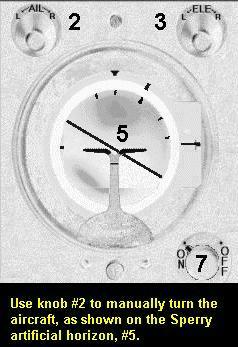
Use
the Aileron control, #2, to manually turn the aircraft to a new heading. It
takes a little practice to learn how much to lead the new heading when you
roll out from a turn. Obviously, one can only perform this function when the
autopilot is engaged, knob #7.
The illustration shows the aircraft in a left turn established with the
Aileron control. The artificial horizon (#5) on the Sperry functions in the
same fashion as the one on the main aircraft panel.
When the aircraft is flying straight under the Sperry control, be certain
that the wings in the indicator are absolutely level, else the rudder will
try and compensate for the bank of the wings to maintain straight flight.
 Controlling
aircraft pitch with the Sperry autopilot is easy. "Rotate" the "Elev" knob,
#3, by clicking on it. The plus sign that appears when the mouse is on the
knob indicates a positive climb, while the negative sign indicates reducing
the climb or an actual descent.
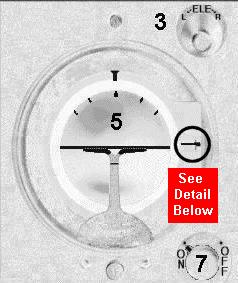
Controlling
aircraft pitch with the Sperry autopilot is easy. "Rotate" the "Elev" knob,
#3, by clicking on it. The plus sign that appears when the mouse is on the
knob indicates a positive climb, while the negative sign indicates reducing
the climb or an actual descent.
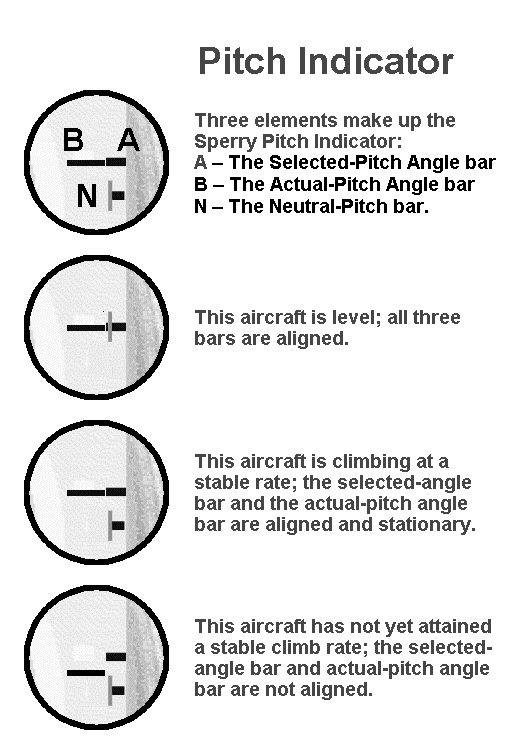
The pitch indicator is on the Sperry Artificial Horizon, at the right hand
side of the gauge, as the illustration below shows. The illustrations also
includes explanations of various pitch indications.
1) Using the Sperry when climbing … Adjust power settings for climb
configuration, 36 in MP and 2350 RPM. Adjust the Sperry pitch control to set
the airspeed at 105 kts, the Best Rate of Climb airspeed.
2) Using the Sperry when descending from cruise altitude … Adjust the power
settings for descent configuration, about 18 in MP and 2050 RPM. Adjust the
Sperry pitch control for desired descent speed, usually about cruise speed,
then adjust power to maintain 500 fpm descent.
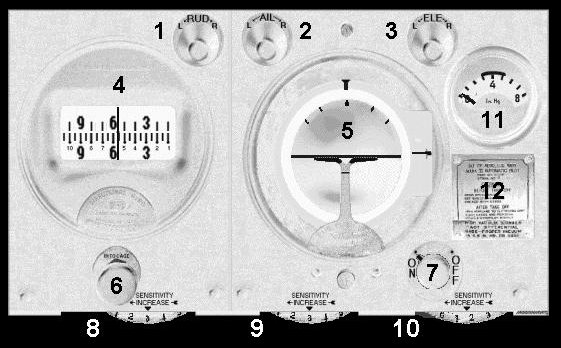
1. Heading knob. Set the heading to coincide with the aircraft heading
while in straight flight.
2. Manual Turn Knob. Click to manually turn the aircraft. Be certain to
return wings to absolute level position.
3. Elevator Knob. Set desired pitch of aircraft climb or descent. Monitor
with th Vertical Speed Indicator.
4. Heading Indicator. There are two scales here. The lower scale indicates
the actual heading of the aircraft just as the standard DG on the panel. The
upper scale, adjusted with Knob #1, is the desired heading.
5. Artificial Horizon. Use to monitor both the manual turns, Knob #2, and
for pitch adjustments, Knob #3.
6. Autopilot DG adjustment. This knob adjusts the lower scale of the heading
indicator to match the compass heading. It is only necessary to adjust this
knob if you have selected "Gyro Drift" in Flight Simulator.
7. On–Off switch. Do not engage the autopilot until the aircraft is trimmed
on the desired heading and the two heading scales match in reading.
8. Sensitivity adjustment for heading. Initially set at "3" and readjust as
needed for desired sensitivity.
9. Sensitivity adjustment for manual turns. Initially set at "3" and
readjust as needed for desired sensitivity.
10. Sensitivity adjustment for pitch control. Initially set at "3" and
readjust as needed for desired sensitivity.
11. Vacuum gauge. The Sperry Autopilot. relied on a vacuum source to
function properly. This gauge shows the acceptable range of the vacuum.
12. Click here for the Autopilot Help screen.
IMPORTANT!! Be certain to advance the Autopilot sensitivity knobs to
about "3." If they are at "0," the Autopilot will not function.